
- Closest default choice: Claude Desktop suits general desktop work; Claude Code suits terminal automation; Cursor or VS Code suits teams that want MCP inside the editor.
- Compare operating controls: Verify local stdio and remote Streamable HTTP support, OAuth behavior, tool approvals, logs, configuration scope, and enterprise policy.
- Production rule: Run the same test server and task set in every candidate. A client that connects is not automatically safe under auth failures, malformed outputs, retries, and long-running tool calls.
MCP Client, Host, and Server: Know the Difference
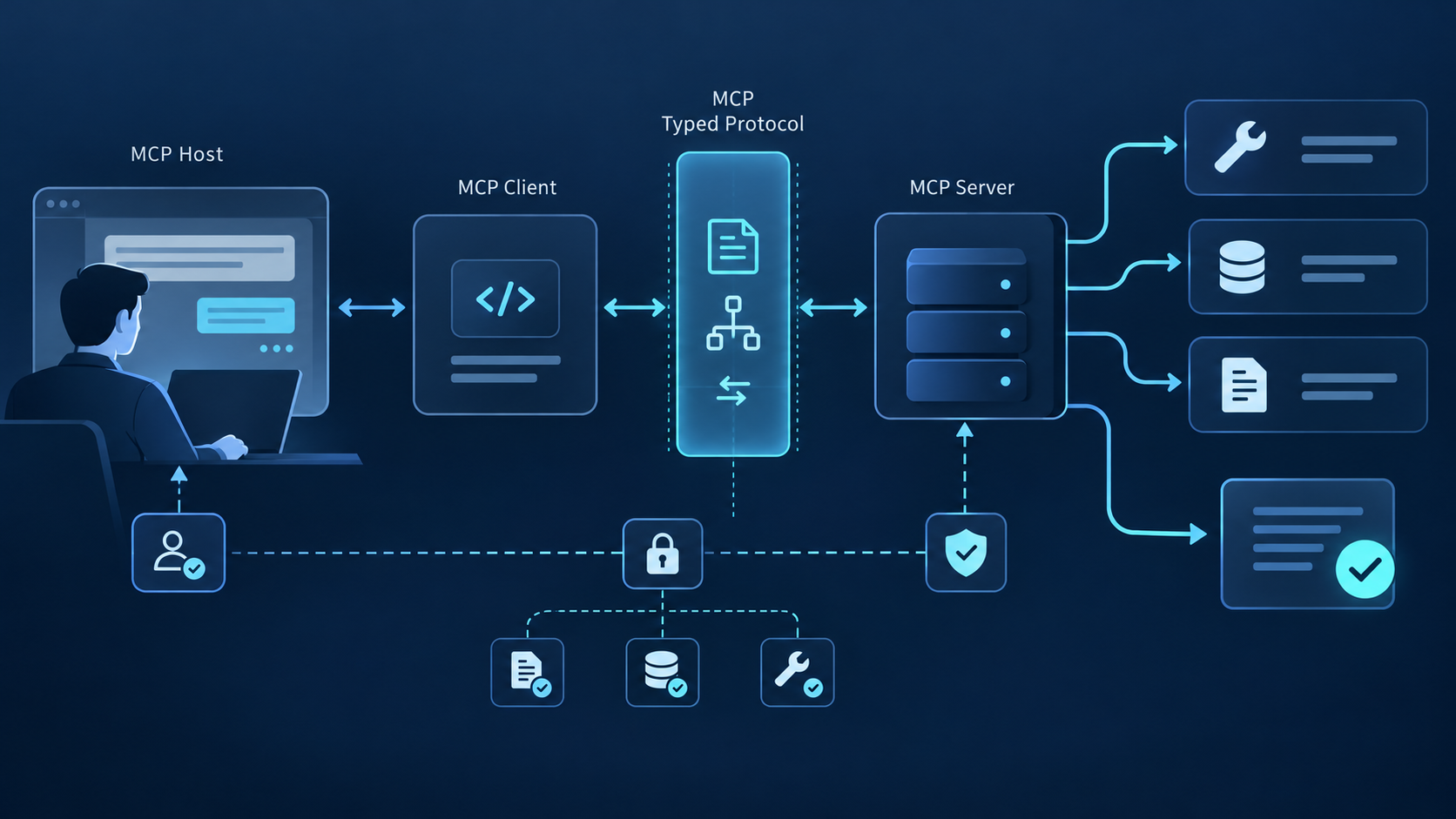
An MCP client is the protocol component inside an AI host that connects to MCP servers. Products such as Claude Desktop, Cursor, and VS Code are usually hosts; each host can create one or more client connections to servers that expose tools, resources, and prompts.
Search results often call the whole application an “MCP client.” That shorthand is useful for product comparison, but the distinction matters when debugging: the host owns the user experience and model loop, the client owns protocol exchange, and the server owns the capability implementation.
The current MCP specification defines JSON-RPC messages between hosts, clients, and servers. Compatibility still depends on which protocol version, transport, authorization flow, and optional features each product actually implements.
A serious comparison therefore tests more than “supports MCP.” It checks server discovery, local process management, remote authentication, tool approval, error visibility, configuration scope, and what happens when a server disappears during a call.
Choose the host around the workflow you need—desktop research, terminal automation, IDE coding, or an embedded product. Then verify the same MCP server against that host before standardizing a team configuration.
Architecture and Transport Requirements
The host controls model access, consent prompts, conversation state, and user-facing errors. Its internal MCP client negotiates capabilities and exchanges messages. The MCP server exposes tools, resources, or prompts. A weak host can make a correct server feel unreliable, so failures must be isolated by layer.
For local integrations, stdio lets the host launch a server as a subprocess. For remote services, Streamable HTTP is the standard path. Legacy HTTP+SSE may still appear during migration, but new deployments should not assume every client supports it equally.
The Three Layers
- Host: The AI application you interact with — Claude Desktop, Cursor, Claude Code, Cline, or any MCP-compatible tool. The host exposes the user interface and coordinates the AI's reasoning.
- Client: A component inside the host that manages communication with MCP servers. Each client maintains a connection to one or more servers, handling protocol negotiation, tool discovery, and message exchange. A single host can run multiple clients simultaneously.
- Server: The capability provider — a service that exposes tools, resources, and prompts to clients. Servers can be public (like the QVeris MCP server with 10,000+ capabilities) or custom-built for specific integrations.
Transport Protocols
MCP uses JSON-RPC as its messaging format over two active transport options, enabling bidirectional tool calling between clients and servers:
- stdio: The most widely supported transport. Communication happens over standard input/output — ideal for local integrations and CLI-based MCP clients like Claude Code.
- Streamable HTTP: The newer standard, replacing the deprecated SSE transport. Supports bidirectional streaming over HTTP, better suited for cloud deployments and remote MCP servers.
- SSE (deprecated): Server-Sent Events was an earlier transport option. Current implementations should use Streamable HTTP instead.
Early adopters including Block, Apollo, Zed, Replit, and Sourcegraph have integrated MCP into their development environments since the protocol's announcement. This client-server architecture means their MCP clients can connect to any MCP server that implements the protocol — enabling a growing ecosystem of capability providers.
The 9 Best MCP Clients in 2026
This shortlist covers the main product shapes developers compare: desktop assistant, terminal agent, AI IDE, editor extension, and open-source runtime. “Best” means best fit for a stated workflow; support depth and configuration details can change by release.
| Client | Type | Interface | Best fit / verify |
|---|---|---|---|
| Claude Desktop | Desktop app | GUI | Desktop research; verify remote auth and team policy |
| Claude Code | CLI | Terminal | Terminal automation; verify scopes and unattended use |
| Cursor | AI IDE | GUI | AI-first coding; verify project/user config behavior |
| Windsurf | AI IDE | GUI | AI IDE workflows; verify transport and tool limits |
| Cline | VS Code extension | GUI | Agentic VS Code work; verify approvals and checkpoints |
| Continue | IDE extension | GUI | Configurable IDE use; verify current MCP feature depth |
| Goose | Open-source agent | CLI/GUI | Open-source desktop/CLI; verify extension permissions |
| VS Code MCP | Editor-native client | GUI | Managed teams; verify trust, policy, and sandbox support |
| OpenCode | Open-source IDE | GUI | Open-source terminal/IDE users; verify remote auth |
1. Claude Desktop
Claude Desktop is the clearest default for people who want MCP inside a general-purpose desktop assistant. Its strength is the complete conversational workflow around tools, resources, and approvals. Confirm the exact remote-server and organization controls available on your plan before a team rollout.
Choose it when: people work primarily in chat and need visible approval before tools act. Test server startup, authentication renewal, tool-list size, and recovery after a failed call. Review Anthropic's MCP documentation →
2. Claude Code
Claude Code is the strongest fit when the terminal is the main workspace. It supports local stdio and remote connections, with project, user, and local configuration scopes. That makes it easier to version shared server definitions without silently sharing every developer credential.
Choose it when: developers need repeatable CLI workflows, explicit scope control, and inspectable server status. Treat CI use separately: decide which calls may run unattended and keep secrets outside committed configuration.
3. Cursor
Cursor combines codebase-aware agent work with MCP server access in the same editor. Its value is reduced context switching: tools can participate in planning and implementation while the developer stays inside the repository.
Choose it when: your team already standardizes on Cursor. Verify whether each server is configured globally or per project, how OAuth state is stored, and whether tool logs are sufficient for incident review. Review Cursor's MCP documentation →
4. Windsurf
Windsurf exposes MCP tools inside its agentic coding workflow. It is a practical candidate for teams already using Cascade and wanting external systems available without leaving the IDE. Because product ownership and documentation routes have changed, validate current setup behavior against the live documentation.
Choose it when: Cascade is already the team's primary agent interface. Test local versus remote servers, authentication prompts, tool-count limits, and the visibility of failed or partially completed calls.
5. Cline
Cline is a VS Code agent extension with an explicit step-by-step workflow. MCP is useful here when coding tasks require external documentation, issue trackers, browsers, or internal systems in addition to repository tools.
Choose it when: visible action review matters more than a fully integrated IDE product. Benchmark approval friction, context growth from large tool catalogs, and how clearly users can distinguish read operations from mutations.
6. Continue
Continue targets configurable AI development inside VS Code and JetBrains products. It belongs on the shortlist when teams value open configuration and want to control models, prompts, and integrations rather than adopt a single bundled IDE.
Choose it when: JetBrains coverage or portable configuration is a requirement. Verify the current MCP feature set for each editor separately; support may not be identical across VS Code and JetBrains builds.
7. Goose
Goose is an open-source local agent with desktop, CLI, and API surfaces. MCP is central to its extension model, making Goose a useful benchmark for teams that want inspectable configuration, multiple model providers, and control over local execution.
Choose it when: open-source ownership and both GUI and terminal workflows matter. Review extension trust, permission controls, sandbox behavior, and how recipes carry server dependencies between machines.
8. VS Code MCP
Visual Studio Code now provides MCP server management through its agent tooling rather than requiring the old assumption of a separate generic MCP extension. Teams can use workspace or user configuration, inspect logs, manage trust, and apply enterprise controls around available servers.
Choose it when: VS Code is already governed at the organization level. Validate workspace trust, secret input handling, server enablement policy, and platform-specific sandbox limitations before auto-approving calls.
9. OpenCode
OpenCode is an open-source coding agent for developers who want a terminal-oriented workflow and configurable providers. It is attractive when the client itself must remain inspectable and portable rather than tied to a proprietary editor. Review the project and current MCP support →
Choose it when: open-source terminal tooling is a hard requirement. Confirm support for the transports and authentication method your servers need, plus the quality of logs and user approval controls in the version you deploy.
Build and Validate an MCP Client
Build a custom client when MCP must live inside your own product, permission model, or agent runtime—not merely because a desktop client lacks a UI preference. Start with an official SDK and keep transport, protocol, policy, and presentation concerns separate.
A production client needs more than connection code. It must expose meaningful consent, validate tool arguments and results, redact secrets from logs, cap output size, cancel long calls, reconnect safely, and show operators which server produced every result.
// MCP Client SDK example — minimal client connecting to a server
// Source: MCP SDK documentation, modelcontextprotocol.io

import { Client } from "@modelcontextprotocol/sdk/client";
import { StdioClientTransport } from "@modelcontextprotocol/sdk/client/stdio";

async function createMCPClient() {
  // Configure stdio transport — connects via stdin/stdout to MCP server
  const transport = new StdioClientTransport({
    command: "npx",
    args: ["-y", "@qverisai/mcp-server"],
    env: {
      QVERIS_API_KEY: process.env.QVERIS_API_KEY,
    },
  });

  // Initialize the MCP client
  const client = new Client({
    name: "my-mcp-client",
    version: "1.0.0",
  });

  // Connect and discover available tools from the server
  await client.connect(transport);
  const tools = await client.listTools();

  console.log(`Connected. Available tools: ${tools.length}`);
  // tools[0].name, tools[0].description, tools[0].inputSchema

  // Call a tool
  const result = await client.callTool({
    name: "web_search",
    arguments: { query: "MCP protocol status 2026" },
  });

  return result;
}

createMCPClient().catch(console.error);
The SDK also supports Streamable HTTP transport for connecting to remote MCP servers:
// Streamable HTTP transport for remote MCP server connections
import { Client } from "@modelcontextprotocol/sdk/client";
import { HTTPClientTransport } from "@modelcontextprotocol/sdk/client/http";

const transport = new HTTPClientTransport({
  url: "https://mcp.qveris.ai/stream",
  headers: { Authorization: `Bearer ${process.env.QVERIS_API_KEY}` },
});

const client = new Client({ name: "remote-client", version: "1.0.0" });
await client.connect(transport);
Building your own MCP client makes sense when you need a custom AI application — a chatbot for internal documentation, an AI assistant embedded in a product, or a specialized workflow tool — with MCP tool access. The SDK abstracts the protocol complexity so you focus on the application logic rather than implementing JSON-RPC framing.
QVeris Implementation Pattern
Use this pattern when an agent needs capabilities across multiple providers but you do not want every client configuration to expose a large static tool catalog. Keep credentials in environment or managed secret storage, start with a narrow allowlist, and verify tool discovery before enabling mutations.
Connect QVeris to Claude Desktop
// Claude Desktop MCP config — ~/.claude/Desktop/mcp.json
// Add QVeris MCP server to Claude Desktop's configuration

{
  "mcpServers": {
    "qveris": {
      "command": "npx",
      "args": ["-y", "@qverisai/mcp-server"],
      "env": {
        "QVERIS_API_KEY": "YOUR_API_KEY"
      }
    }
  }
}
Connect QVeris to Cursor
// Cursor MCP settings — .cursor/mcp.json (project root or ~/.cursor/)
// Works across Cursor projects — configure once, use everywhere

{
  "mcpServers": {
    "qveris": {
      "command": "npx",
      "args": ["-y", "@qverisai/mcp-server"],
      "env": {
        "QVERIS_API_KEY": "YOUR_API_KEY"
      }
    }
  }
}
Configuration shape varies by host, but the operating sequence is consistent: install or register the server, inject credentials outside source control, restart or refresh discovery, inspect the exposed tool list, and run one read-only call before enabling a broader policy. Record the client version and configuration scope with every test result.
With QVeris, the useful implementation pattern is capability routing: describe the required outcome, retrieve a compatible capability, and keep provider-specific schemas behind one boundary. That reduces adapter code, but it does not remove the need for host-side approvals, budget limits, and audit logs.
Keep the two decisions separate. Select an MCP client for its interface, controls, transport support, and deployment model. Select QVeris or another server layer only when its available capabilities, provenance, latency, cost, and failure behavior meet the workload's requirements.
Production Selection Checklist
Shortlist by workflow, then test operational controls. The same server should be exercised through every candidate with identical inputs, credentials, timeouts, and expected results.
| Primary requirement | Shortlist | Validation gate |
|---|---|---|
| Desktop research and visible consent | Claude Desktop | Verify remote auth, approval UX, logs, and reconnect behavior |
| Terminal automation and shared config | Claude Code | Verify configuration scope, secret injection, and unattended policy |
| AI-native IDE workflow | Cursor or Windsurf | Verify local/remote transport parity and tool-call visibility |
| VS Code with explicit governance | VS Code or Cline | Verify trust prompts, workspace policy, approvals, and sandbox limits |
| JetBrains or portable IDE configuration | Continue | Test the exact editor build and required MCP features |
| Open-source desktop or terminal control | Goose or OpenCode | Verify provider support, permissions, logs, and update process |
| Broad capability discovery across providers | Compatible client + QVeris | Validate allowlists, provenance, latency, budget, and rollback |
Before rollout, record one pass/fail matrix covering connection, discovery, read call, write approval, malformed response, timeout, cancellation, credential expiry, server restart, and audit-log completeness.
Test Capability Routing in Your Chosen MCP Client
Connect one read-only QVeris capability first, verify discovery, authorization, output provenance, latency, and error handling, then expand the allowlist only after the client passes your production checklist.
Read the MCP Server Documentation →