
Free Exchange Rate API
for Excel
Connect a free exchange rate API to Excel, transform JSON with Power Query, and build a refreshable currency table.
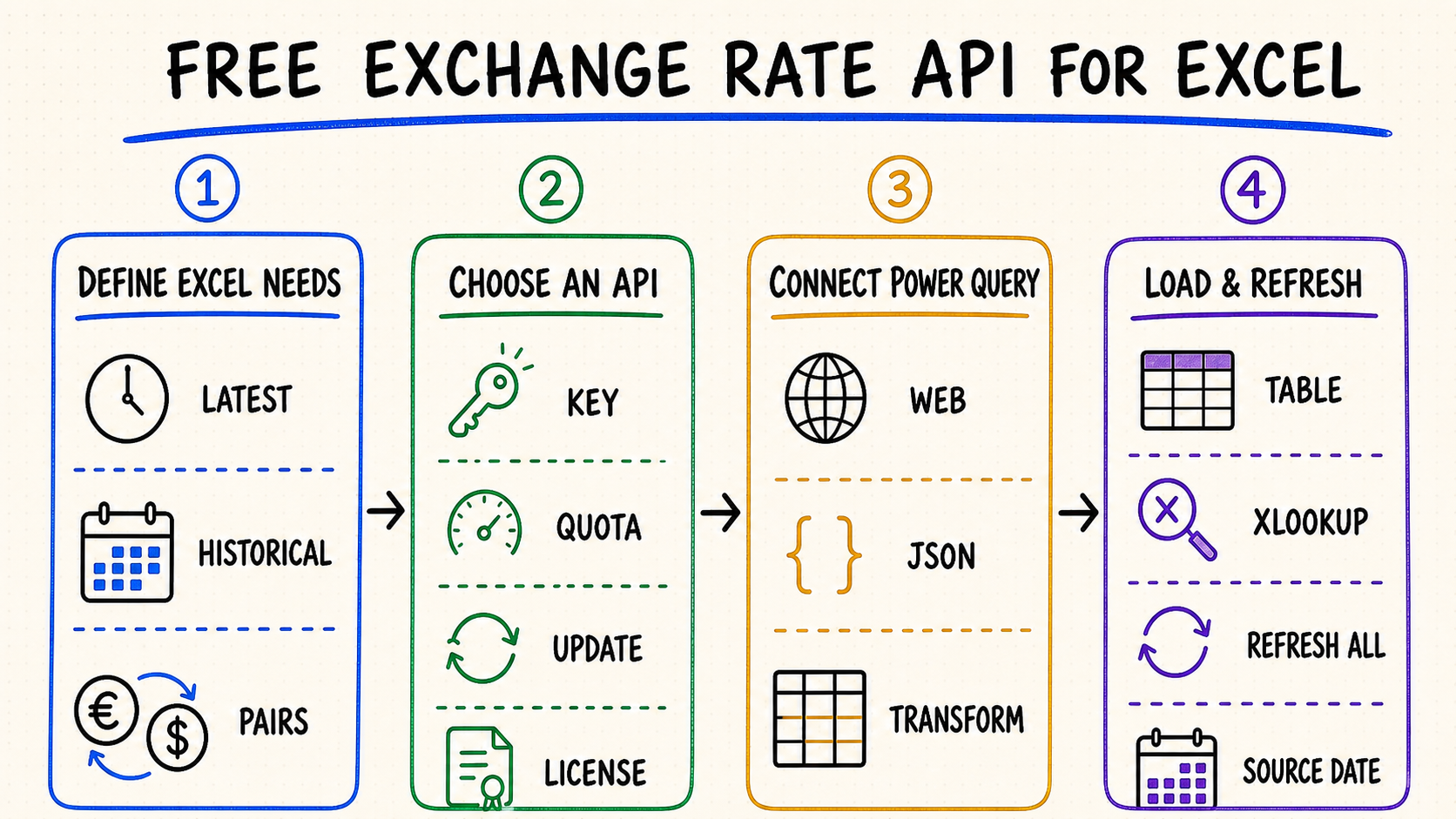
Quick answer
Use Power Query's Web connector to request JSON or CSV, shape the response, and load it as an Excel table.
Microsoft 365 can use the Currencies linked data type for supported pairs without a separate API workflow.
Check API keys, quotas, refresh frequency, attribution, historical coverage, and commercial-use terms.
Store the API's observation date and refresh timestamp so workbook users know what the rate represents.
How to choose a free exchange rate API for Excel
Start with the workbook's actual task: latest rates for a dashboard, historical exchange rates by date, or repeatable currency conversion for many rows. A provider that works for a daily budget sheet may not fit audited reporting or intraday pricing.
Confirm whether the free plan exposes both the current base/quote rate and dated or time-series queries.
A keyless URL is simple, but Power Query can also send API keys through headers or parameters. Never publish a private key in a shared workbook.
“Real time” is not a uniform promise. Check the provider's documented refresh schedule, contributing sources, timezone, and rate type.
Compare monthly requests, burst limits, attribution, commercial use, caching rules, uptime status, and a fallback source.
A practical evaluation checklist
| Requirement | What to record | Why it matters in Excel |
|---|---|---|
| Coverage | Base currencies, quote currencies, metals or crypto, historical depth. | Missing pairs break lookups and downstream reports. |
| Freshness | Published update interval, observation timestamp, timezone. | A five-minute workbook refresh cannot improve a daily source. |
| Free tier | Requests per month, burst limits, endpoint exclusions. | Refresh on open can multiply calls across every workbook user. |
| Terms | Attribution, caching, redistribution and commercial use. | A technically working query may still be unsuitable for shared reports. |
Connect a free exchange rate API to Excel with Power Query
| Step | Excel action | What to verify |
|---|---|---|
| 1 | Open Data → Get Data → From Web and enter the documented endpoint. | HTTPS URL, authentication method, and allowed parameters. |
| 2 | Preview the response and choose Transform Data. | HTTP status, JSON/CSV shape, base currency, date, and timezone. |
| 3 | Convert records to a table, expand rate fields, and set data types. | Currency codes remain text; rates become decimal numbers. |
| 4 | Close & Load, then configure query refresh properties. | Refresh interval stays inside the provider's quota and terms. |
Example Power Query M pattern
The exact field names depend on the provider, but the pattern is stable: request the endpoint, parse JSON, turn the rates record into a table, name the columns, and preserve the source date.
let
  Source = Json.Document(Web.Contents(ApiUrl)),
  Rates = Record.ToTable(Source[rates]),
  Renamed = Table.RenameColumns(Rates, {{"Name", "Currency"}, {"Value", "Rate"}}),
  WithDate = Table.AddColumn(Renamed, "SourceDate", each Source[date])
in
  WithDate
Security note: use Power Query credential settings or a controlled intermediary for private keys. Do not concatenate a secret into a workbook URL that will be emailed or published.
Three ways to get exchange rates into Excel
Power Query is the most flexible choice, but it is not the only one. Select the method according to Excel version, refresh requirements, historical-data needs, and who will maintain the workbook.
| Method | Best for | Limitations |
|---|---|---|
| Currencies data type | Microsoft 365 users who need supported currency pairs with minimal setup. | Availability and fields depend on Excel's linked-data coverage; Microsoft notes that information may be delayed. |
| Power Query | Repeatable latest or historical API imports, transformations, tables, and controlled refresh. | Requires a stable endpoint and some understanding of JSON, parameters, and credentials. |
| Formula or VBA | Small custom workflows where a query table is not suitable. | JSON parsing, security, error handling, and cross-platform support are harder to maintain. |
When to use Excel's built-in currency data type
For Microsoft 365, enter a pair such as USD/EUR, convert the cell to the Currencies data type, insert the Price and Last Trade Time fields, and use Refresh All. Choose an API instead when you need explicit provider control, historical date parameters, a documented response, or automation outside Microsoft 365.
Build an automatically refreshing currency converter in Excel
Create named cells for base currency, quote currency, and optional historical date. Read them in Power Query instead of editing the URL by hand.
Use XLOOKUP against the loaded rate table, then multiply the source amount by the matched rate. Keep calculation logic separate from the web request.
Use Refresh All for manual updates or query properties for controlled refresh. Do not schedule calls more often than the data itself updates.
Historical services may omit weekends or holidays. Define whether the workbook should use the previous available observation and surface API errors instead of silently retaining stale values.
Set dates, decimal separators, and numeric conversions explicitly in Power Query. A workbook opened under another regional setting must not reinterpret 1.234 as 1,234 or swap month and day.
Keep a small control table with provider, endpoint, requested base, observation date, refresh time, query version, and error status. Protect query cells and document who may change credentials or conversion rules.
Formula pattern for currency conversion
After Power Query loads a table named FxRates with Currency and Rate columns, a row-level conversion can use =[@Amount]*XLOOKUP([@TargetCurrency],FxRates[Currency],FxRates[Rate]). Confirm the API's quotation direction first: a USD-base rate is not interchangeable with its reciprocal.
Latest rates versus historical rates
Use latest rates for current dashboards, estimates, and operational views. Use dated observations for invoices, month-end reporting, backtesting, or reconciliation. Historical workbooks should store the requested date, returned observation date, source, and timezone rather than keeping only the numeric rate.
Troubleshoot exchange rate API errors in Excel
Confirm whether the provider expects the API key in a header or query parameter. Clear stale Power Query permissions under Data Source Settings before reconnecting.
Reduce refresh frequency, cache one query table for all worksheet formulas, and avoid making a separate web request for every row or currency pair.
Set the rate column to Decimal Number with an explicit locale. Decimal separators can otherwise be interpreted differently across regional Excel installations.
Check weekends, market holidays, provider timezone, earliest available date, and whether the free tier excludes historical endpoints.
Expose SourceDate and RefreshedAt cells, inspect query errors, and decide whether failed refreshes should stop calculations instead of silently preserving old data.
How QVeris helps find exchange rate tools
QVeris helps users and agents discover and inspect relevant financial-data capabilities. Use its QVeris tool details to compare candidate tools, then verify each provider's current documentation and terms before connecting Excel.
- Search by capability, such as exchange rates, historical FX data, or currency conversion.
- Inspect authentication, parameters, response format, and provider documentation.
- Test the selected endpoint in a small workbook before designing a scheduled refresh workflow.
FAQ
Use Microsoft 365's Currencies data type for supported pairs, or connect a documented API through Power Query and refresh the query.
Yes. Power Query can request a web endpoint, parse JSON or CSV, expand records, and load the output into a table.
Yes, some services provide keyless endpoints. Still verify attribution, quotas, update schedules, permitted uses, and service continuity.
Choose a date or time-series endpoint, pass the date from Power Query, and keep the returned observation date in the table.