
Claude Code Figma MCP Setup & Workflow
Use Figma MCP in Claude Code to read one frame, map components to existing code, and verify the interface across breakpoints.
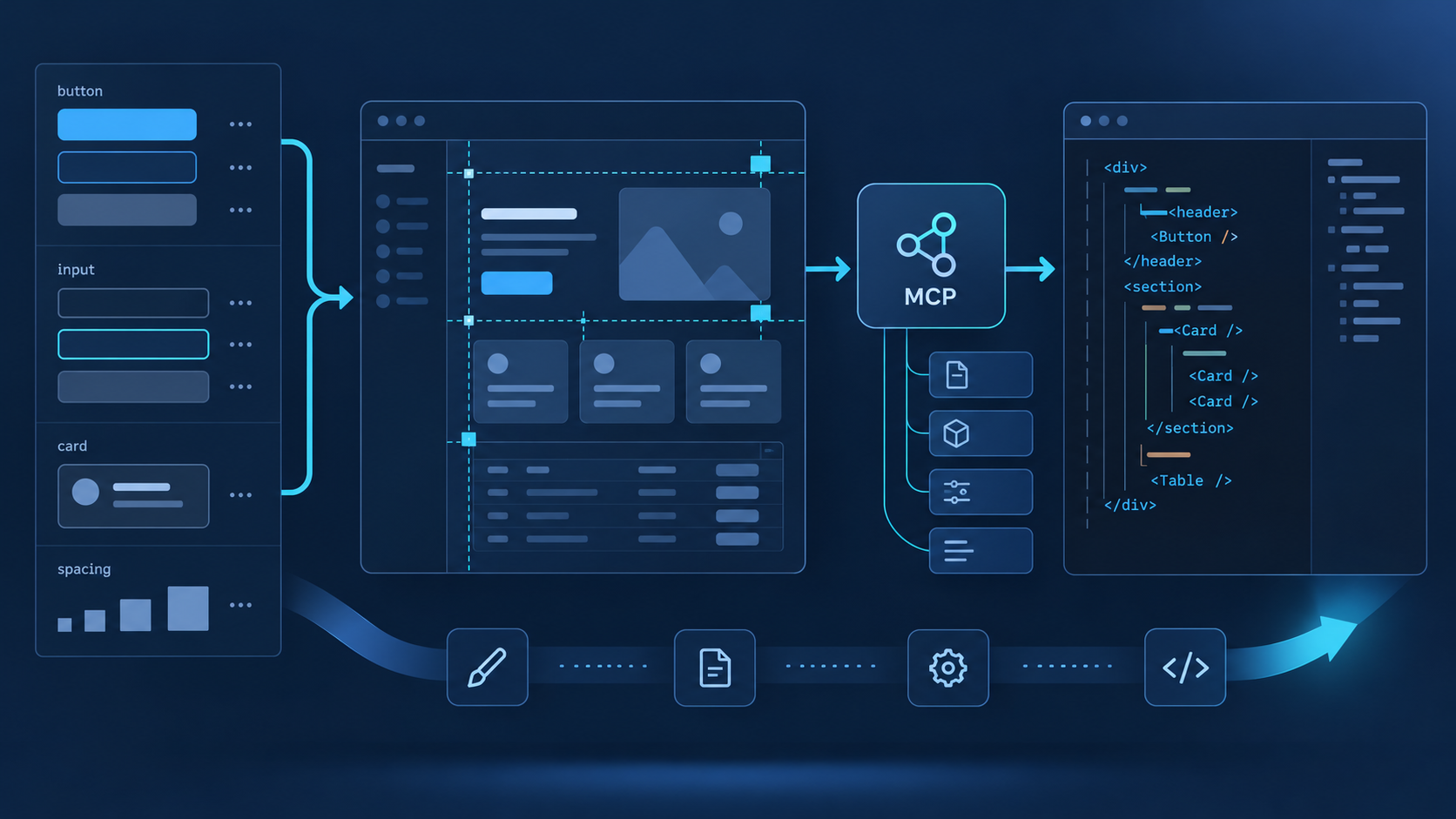
Claude Code Figma MCP in brief
For most Claude Code users, install Figma's official plugin and use the remote MCP server. Then work from one exact frame or layer link, not an entire file. Ask Claude Code to inspect the repository, retrieve structured design context and a screenshot, map Figma components and variables to existing code, propose a bounded diff, implement it, and verify the rendered result at the required breakpoints. Figma MCP supplies context and canvas tools; Claude Code still owns the final code decisions.
Figma recommends the remote server for most users. Its Claude Code plugin bundles the MCP configuration with skills for common design-to-code workflows.
A frame or layer link gives the remote server the node ID it needs. Smaller targets reduce context waste and make visual comparison practical.
The MCP response may look React-like, but Figma describes it as structured design input. Claude Code must adapt it to the repository's framework and conventions.
Check code quality, responsive behavior, accessibility, and tests in the repository, then compare screenshots and states with the selected Figma design.
How the Claude Code and Figma MCP loop works
The useful mental model is “design evidence into a governed code change,” not “turn a picture into code.” Figma can return frames, components, layout data, variables, styles, screenshots, assets, and Code Connect mappings. Claude Code combines that evidence with the actual component library, routes, state model, tests, and project instructions. The quality of the result depends on how well those two sources are reconciled.
| Stage | Claude Code action | Evidence to keep | Stop condition |
|---|---|---|---|
| Scope | Resolve one Figma URL, node ID, variant, and target route. | File, page, frame, variant, and required breakpoints | The link points to a page or ambiguous selection. |
| Inspect | Read repository structure, design system, routes, and tests. | Existing components, tokens, patterns, and ownership | No approved component or target location is identifiable. |
| Retrieve | Get design context, variables, screenshot, and mappings. | Node IDs, hierarchy, styles, assets, and visual reference | The response is truncated, oversized, or for the wrong variant. |
| Map | Match Figma instances and variables to repository primitives. | Code Connect, imports, token names, and fallback decisions | Mapping would create a duplicate component system. |
| Implement | Apply the smallest approved diff and preserve behavior. | Changed files, component API, states, and asset sources | The design requires an unapproved API or architecture change. |
| Verify | Run tests and compare rendered states at each breakpoint. | Screenshots, dimensions, interactions, accessibility, and test output | A mismatch is hidden with a one-off override. |
If get_design_context is too large or truncated, retrieve sparse metadata first, choose the relevant child nodes, and request context only for those nodes. Do not keep retrying the entire page and consume tool limits without narrowing the problem.
Structured context explains hierarchy and properties; get_screenshot shows the visual result. Keep both. A correct component tree can still have the wrong crop, wrapping, density, or responsive behavior.
Use Code Connect mappings when available, then search the repository for the mapped component and its supported variants. If no mapping exists, document the closest approved primitive and why it is preferable to creating a duplicate.
A desktop frame alone does not specify every breakpoint. Ask which dimensions are authoritative, how Auto Layout should translate, and what happens for hover, focus, loading, empty, error, and long-content states before implementation.
Reusable implementation prompt: “Use the Figma node at [URL] as design evidence for [route/component]. Inspect the repository first. Retrieve design context, variables, Code Connect mappings, and a screenshot for the exact variant. Reuse components from [path] and tokens from [path]; do not create parallel primitives or hardcode values without approval. Propose the file-level diff and unresolved states before editing. After approval, implement and verify at [breakpoints].”
Choose and configure the right Figma MCP server
Figma's Claude Code setup guide recommends the official plugin and remote server. The remote endpoint is available across Figma seats and plans, although read-tool limits depend on seat and plan. The desktop server requires a Dev or Full seat on a paid plan and is intended for narrower organization or enterprise scenarios.
| Connection | Main job | Best for | Boundary |
|---|---|---|---|
| Remote plugin | Installs https://mcp.figma.com/mcp plus Figma skills. | Recommended Claude Code onboarding and broadest workflow coverage. | Organization policy may block plugin installation; OAuth is required. |
| Remote manual | Registers the same hosted endpoint without bundled skills. | Teams that manage MCP configuration separately. | You must supply project instructions and workflow rules yourself. |
| Desktop server | Uses http://127.0.0.1:3845/mcp from the Figma desktop app. | Selection-based local work in eligible organization environments. | Narrower feature set, desktop app dependency, paid-plan seat requirement. |
Run claude plugin install figma@claude-plugins-official. If installation is blocked, ask the Claude administrator whether plugins are disabled globally or whether Figma is specifically denied; do not substitute an unverified package.
Restart Claude Code, open /plugin, select the installed Figma entry, and begin authorization. Check the Figma identity and requested access before allowing it, then confirm the plugin displays as connected.
Use the available identity tool to confirm the authenticated email, plans, and seat types. Inspect the runtime tool list rather than assuming every remote-only or write-to-canvas capability is enabled for the current account and client.
Copy a link to one harmless frame or layer. Ask for its node ID, metadata, variables, and screenshot without changing code or Figma. Compare the response with the source design and record which tool calls consume plan limits.
| Symptom | Likely cause | Safe next check |
|---|---|---|
| Plugin installation fails | Claude organization policy | Confirm the official marketplace and ask the administrator about plugin controls. |
| Authentication loops | Wrong account or stale OAuth state | Disconnect, reconnect, and verify the browser identity and organization. |
| File cannot be accessed | Invalid link, identity, plan, seat, or file permission | Check the selection link, identity result, and permission on the file's plan. |
| Context is too large | Whole page or heavy frame | Use metadata to identify child nodes, then request only the needed context. |
| Code looks generic | Missing repository rules, mappings, or framework prompt | Provide component paths, tokens, Code Connect labels, and the target framework. |
| Rate limit is reached | Seat/plan limit or repeated broad reads | Stop retries, narrow nodes, and review current Figma access limits. |
Where QVeris fits beside Claude Code Figma MCP
Figma MCP is the direct integration for design context and canvas operations. A current QVeris catalog search did not surface an exact Figma Tool or Provider record; a name-only result belonged to an unrelated test API and was rejected. This page therefore uses QVeris Docs and the QVeris Playground rather than implying a native QVeris-to-Figma connection.
- Use Figma for design truth. Components, variables, layout, screenshots, assets, and canvas edits should remain inside the Figma permission and evidence boundary.
- Add QVeris only for a separate external job. Examples include discovering a data provider for content that appears in the interface or evaluating a callable capability outside Figma and the repository.
- Validate before crossing systems. Inspect provider identity, tool inputs, returned fields, constraints, and provenance before external output becomes UI copy, fixtures, or a design artifact.
- Approve every mutation independently. Permission to read Figma does not authorize a repository edit; approval of a code diff does not authorize an external call or a write back to the canvas.
FAQ
No. It returns structured design context and a code-oriented representation. Claude Code must translate that input into the repository's framework, components, state model, and standards.
Use remote for most Claude Code work and the broadest feature set. Choose desktop only when its local, selection-based workflow, seat requirements, and narrower capabilities fit your organization.
The remote server supports native canvas creation and modification for eligible accounts and clients. Confirm runtime tools, file edit permission, target node, and proposed layer changes before writing.
Figma uses a React-like format because agents can interpret it effectively. It is framework-agnostic design context, not a requirement to use React or Tailwind in the final project.
Inspect the repository first, use Code Connect mappings, point Claude Code to approved component and token paths, and require an explanation before any new primitive is introduced.
Use metadata to obtain a sparse node map, select the relevant children, then request design context and screenshots for those nodes. Avoid repeated full-page retrieval.
References and next steps
Figma Claude Code setup guide
Figma MCP server guide
Figma MCP tools and prompts
Figma file structure guidance
Figma MCP access and limits
Claude Code MCP documentation
QVeris Docs
QVeris Playground